Free + Premium
Receipt and bill scanner
Scan a bill with your phone camera and Lipi reads the shop, amount, date and category, then fills in the expense for you to check and save.
Problems it solves
- I keep paper bills in my bag and never type them in.
- Typing the shop, amount and date for every bill takes too long, so I skip it.
- I want the bill photo kept with the expense in case I need proof later.
What it is
The receipt scanner in Lipi turns a photo of a bill into an expense. Point the camera at a receipt, or upload a photo or PDF, and Lipi reads the vendor, the amount, the date and a suggested category. It then opens a ready-filled transaction for you to check. This is the fastest way to track expenses from paper bills without typing.
What problem it solves
Most people skip small bills because typing them in feels like work. The scanner removes the typing. You take one photo, check the numbers and save. The bill image is attached to the transaction, so the proof stays with the record. That helps when you need a warranty, a refund or a tax paper trail.
How it works
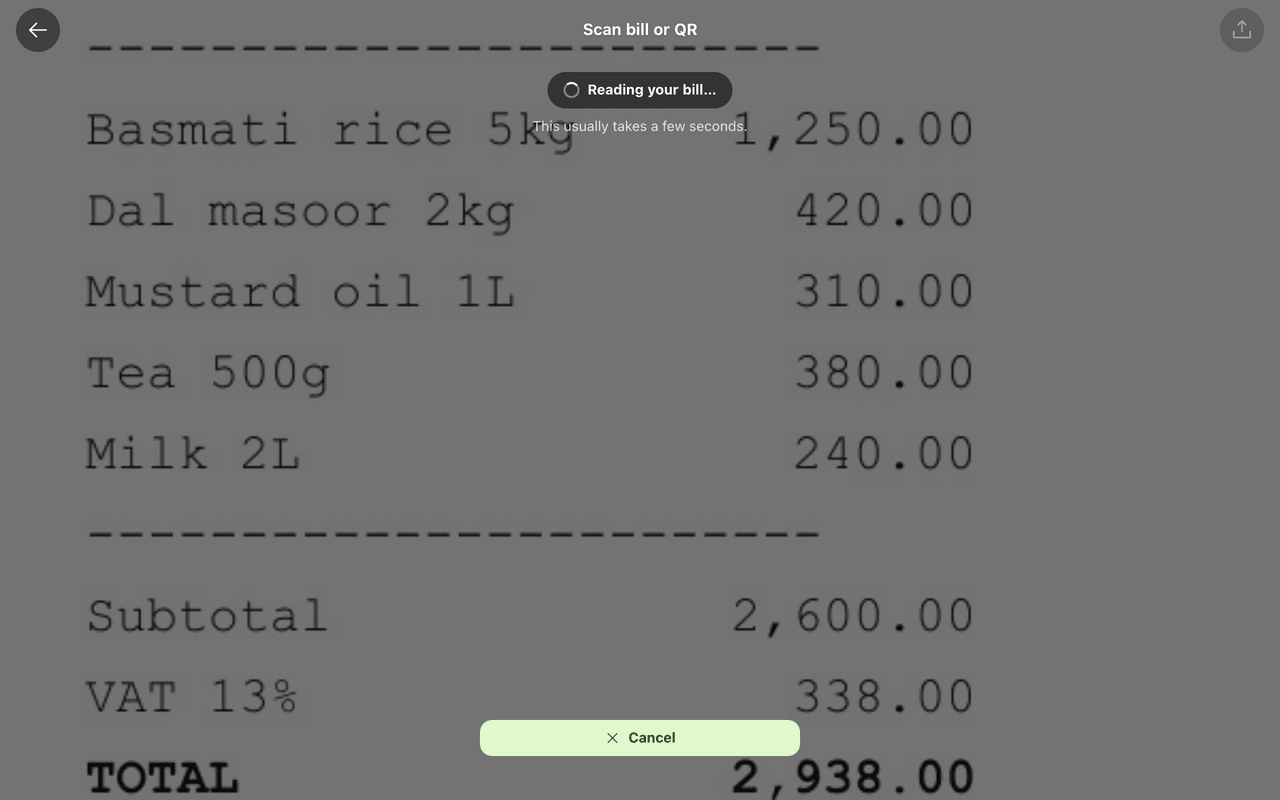
- Open the scanner by swiping right on the home screen. The title reads Scan bill or QR. On first use a hint says: “Align the bill inside the frame. Or tap the upload icon for a photo or PDF.”
- Take a photo of the bill, or tap the upload icon and choose a photo or PDF. Use Switch camera if the wrong lens is on.
- Wait a few seconds while Lipi shows Reading bill…. The scanner runs on Lipi’s servers, so you need a connection.
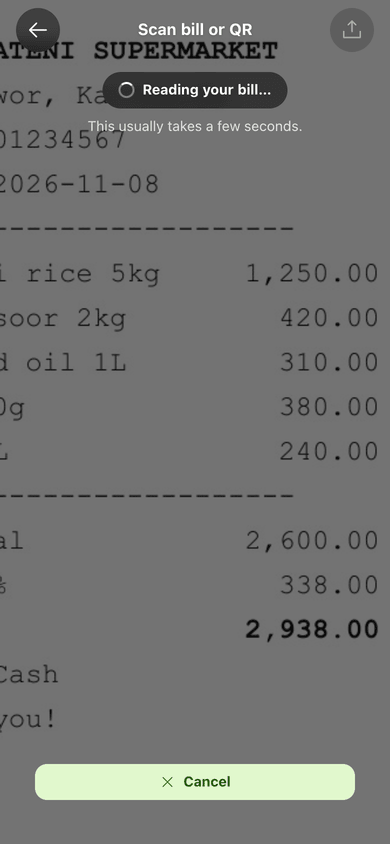
- Check Bill details found: Vendor, Amount, Date and Category. Tap Review transaction, or Retry scan if it read the wrong bill.
- The expense opens in the editor with the bill attached. Fix anything that is off, then save. You will see “This bill will be attached when you save.”
You can also share a photo, PDF or text from your phone’s share sheet straight to Lipi. It lands on the same review flow.
Details and rules
- Free: 5 scans a month. The counter shows Free scans left.
- Premium: up to 100 smart scans a day. The same cap protects the service for everyone.
- When smart scanning is used up for the day, Lipi reads the bill in basic mode and tells you to double-check the details.
- If you have no scan credit, the bill is saved as an attachment only. A note says auto-classification is a Premium feature, with a link to See Premium. You can still add the expense by hand.
- If a bill cannot be read, Lipi shows Couldn’t read the bill and offers Keep as attachment. If it takes too long, you can add the transaction yourself and the photo stays attached.
- If the camera is blocked you see Camera unavailable. Upload a photo instead.
- The category suggestion comes from your own categories. You can change it in the editor before saving.
- The same screen also reads QR codes, for example to join a split or a shared account.
- Photos need internet to be read. When you are offline the image waits on your device and uploads later.
- Scanning is not the same as storing proof. Attached files count against your monthly attachment allowance on Free.
Works with
- Quick add for typing an expense by hand
- Attachments and receipts for keeping bills with transactions
- Transactions
- AI assistants over MCP
Ask an AI assistant
Connect ChatGPT or Claude and send a bill photo with a message such as “Scan this receipt and add it to my Cash account.” The assistant calls scan_receipt, which runs the same scanner as the app, then get_scan if the result is still pending. It shows you the figures and records the expense only after you agree. read_document is a fallback for photos that the assistant reads itself, and attach_file keeps the image on the transaction.
For AI assistants
Lipi’s MCP server gives an assistant these tools for this feature:
scan_receiptget_scanread_documentattach_file
Questions and answers
Does Lipi have a receipt scanner?
Yes. Lipi reads a photo or PDF of a bill and proposes a transaction with the vendor, amount, date and a suggested category. You review it and save. Nothing is recorded until you tap save.
How many receipts can I scan for free?
Free accounts get 5 scans a month. Premium accounts get up to 100 smart scans a day. When your allowance is used up, the bill is still saved as an attachment, or read in basic mode, and you add the details yourself.
Does the scanner work offline?
No. Reading a bill happens on Lipi's servers, so it needs internet. If you are offline, the photo stays on your device and uploads when you are back online. You can also add the expense by hand.
Can I scan a PDF or only a camera photo?
Both work. On the Scan bill or QR screen you can use the camera or tap the upload icon to pick a photo or a PDF from your phone or computer.
Can Lipi scan bills like other expense apps do?
Yes, Lipi covers the same basic job: photograph a bill, get the amount and vendor filled in, keep the image attached. It also lets an AI assistant run the same scanner through the scan_receipt tool, and it works on a phone as an installable web app with no app store needed.
Is the scan always right?
No. Always check the amount and date on the review screen. If Lipi cannot read the bill it says so and offers to keep the photo as an attachment. If smart scanning is used up for the day it reads in basic mode and asks you to double-check.
Last updated:
More in Import, scan and backup
Import transactions from CSV
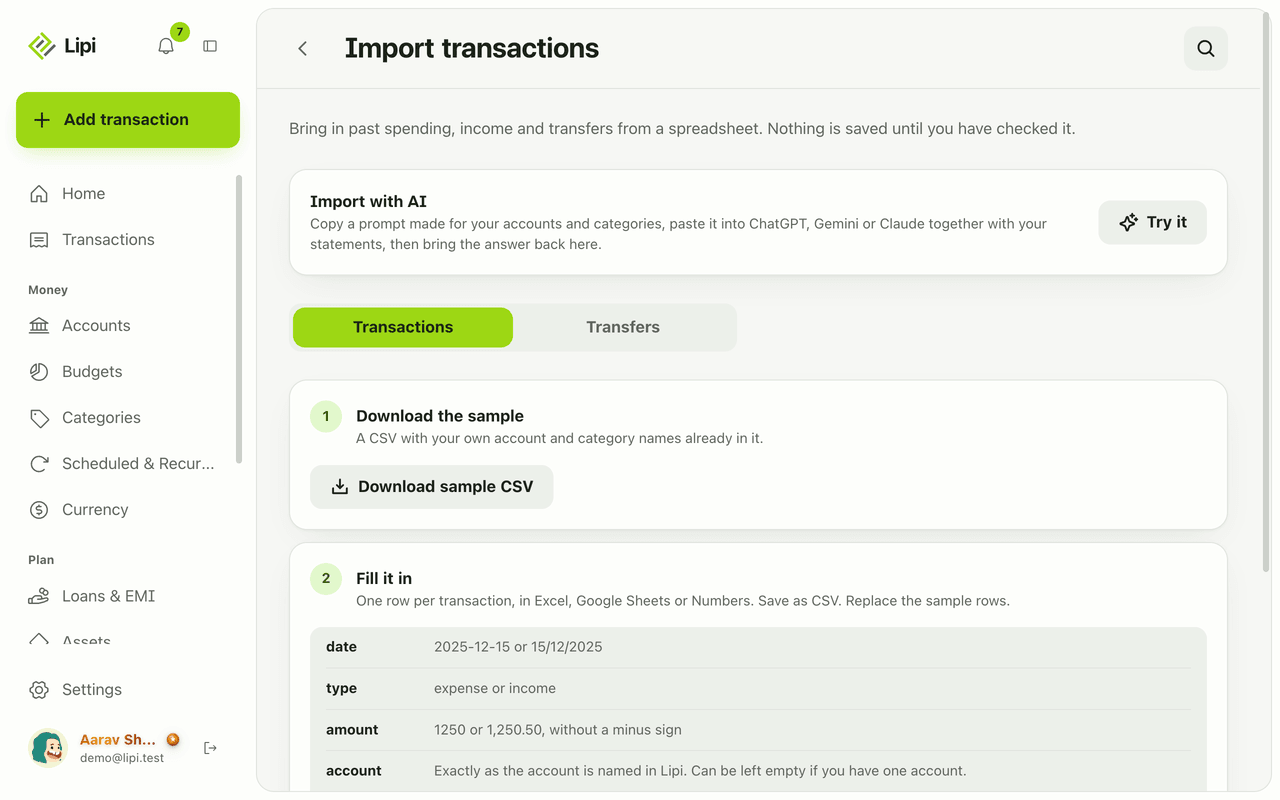
Yes, Lipi imports transactions and transfers from a CSV file, with a preview, error report and duplicate skipping before anything is saved. Import is a Premium feature.
Export, backup and restore
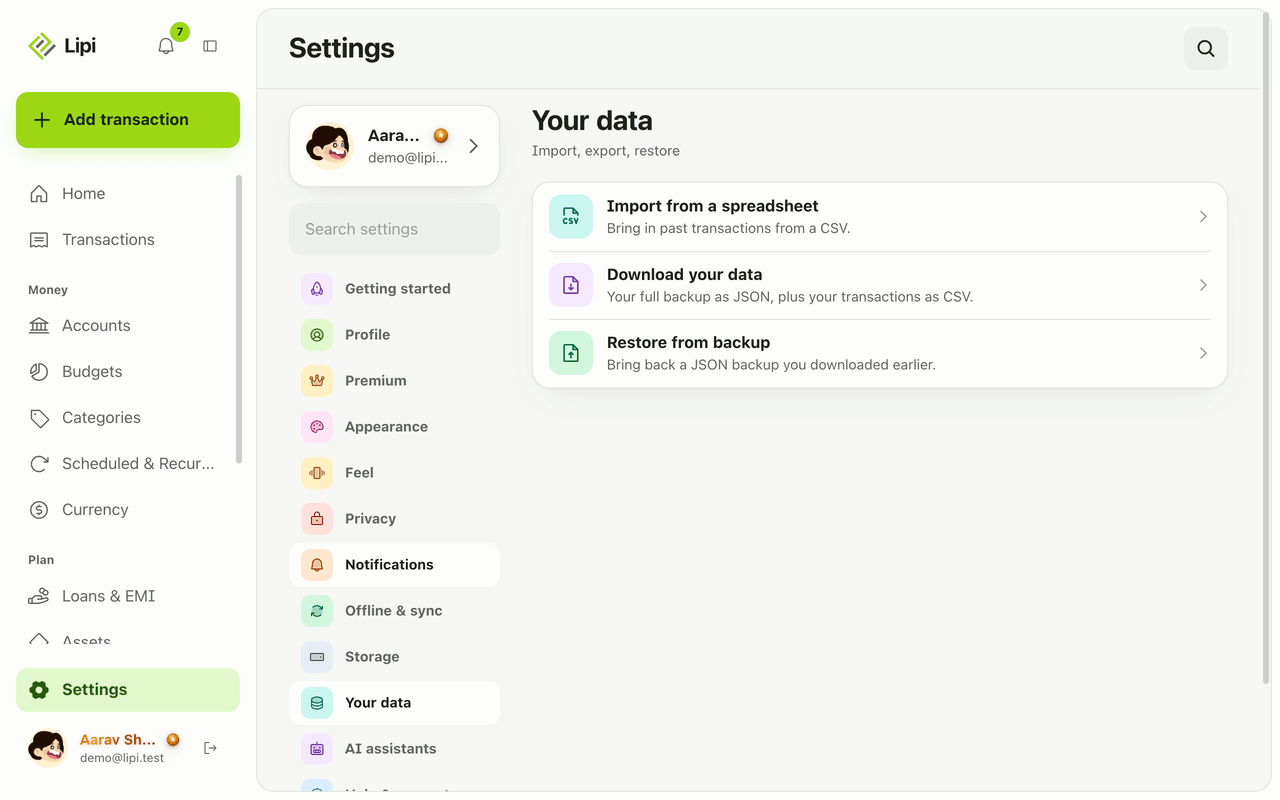
Yes, Lipi exports your data: a full JSON backup of the account and a CSV of every transaction, plus restore from a backup. Export, backup and restore are Premium features.